
Action: Booking.com - Your profile and Description
Listing Setup: Booking.com - Setup
Setting up your Booking.com profile means entering your business name, choosing a profile type and adding your description across the property, company and neighbourhood sections. A company profile tends to display with clearer headings than a host profile. Longer descriptions from OwnerRez usually need to be split between sections without duplication, and a logo suits Booking.com's more professional audience.
What this lesson covers
- What You're Doing in This Lesson
- Before You Start
- Company Profile or Host Profile?
- Choosing Where to Split
- The Steps in Five Parts
- Part 1: Set up the profile (steps 1 to 5)
- Part 2: Copy the master description from OwnerRez (steps 6 to 14)
- Part 3: Paste and find the overflow (steps 15 to 25)
- Part 4: Move the host story (steps 26 to 32)
- Part 5: Add your image and save (steps 33 to 36)
The full lesson is for clients
Clients get every step, the live walkthrough videos and our exact settings and templates from Skye’s Beach House.
Questions people ask
Should I use a company or host profile on Booking.com?
Many hosts choose a company profile because it displays with clearer headings and looks more professional to Booking.com's hotel-minded guests.
What if my description is too long for Booking.com?
Split it across the available sections, such as continuing in the neighbourhood section, without repeating content.
Should I use a photo or logo for my Booking.com profile?
A logo often fits better, because Booking.com guests respond more to professionalism than personal profiles.
Watch a free lesson
 Free lesson · IntroductionWhy Naming and Identity Shape Guest BehaviourYour Airbnb hosting identity is the name that sits above all your listings, and it becomes your email address. If you might ever own more than one pro…
 Free lesson · IntroductionFree Lesson: Airbnb Arbitrage – What It Is, Why Landlords Resist It & the Margin RealityAirbnb arbitrage means leasing a property long-term at a fixed rent, running it as a short-term rental with the landlord’s written permission, and kee…
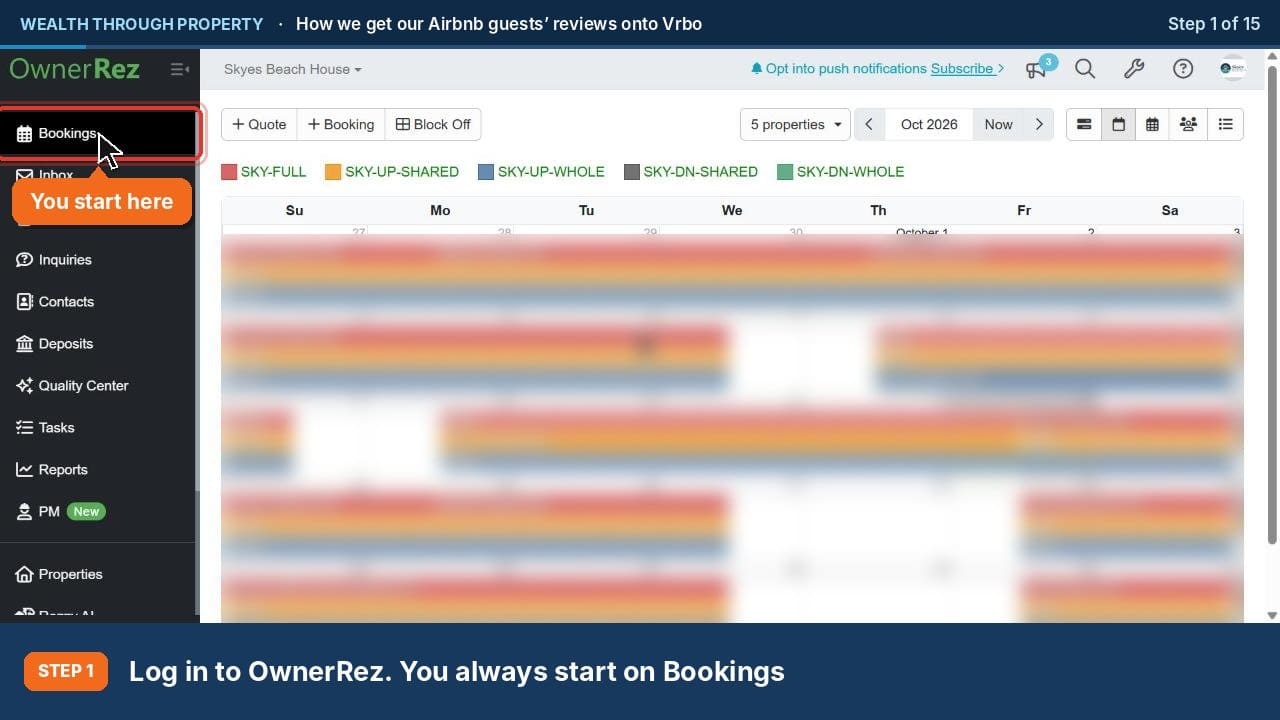 ▶Free lesson · IntroductionFree Lesson: How We Get Our Airbnb Guests’ Reviews onto Vrbo (OwnerRez)Vrbo won’t import your Airbnb reviews, but it does accept reviews that guests leave on your own OwnerRez review form. Ask every Airbnb guest to review…